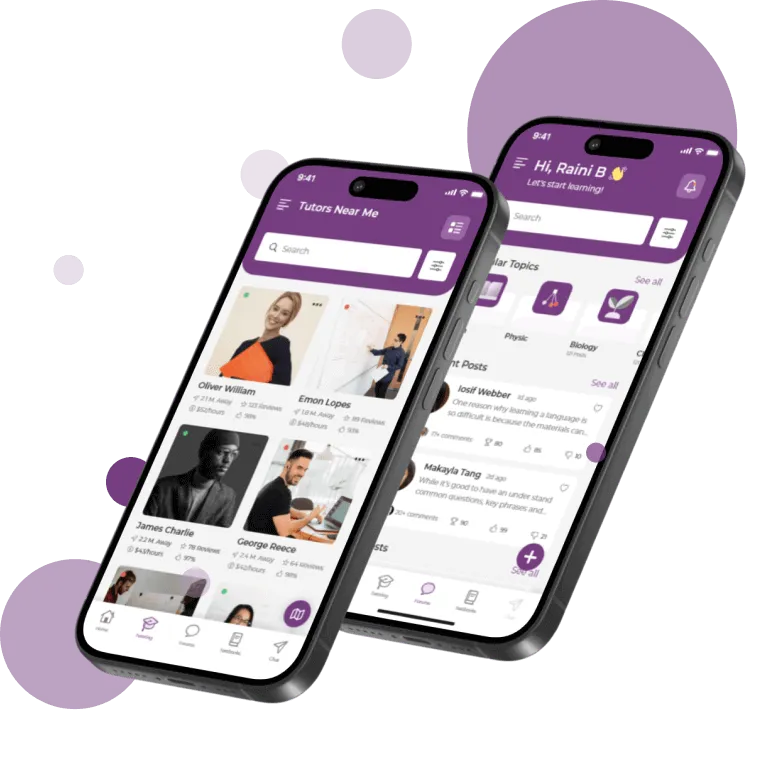




Online Whiteboard
A shared online whiteboard built for real tutoring
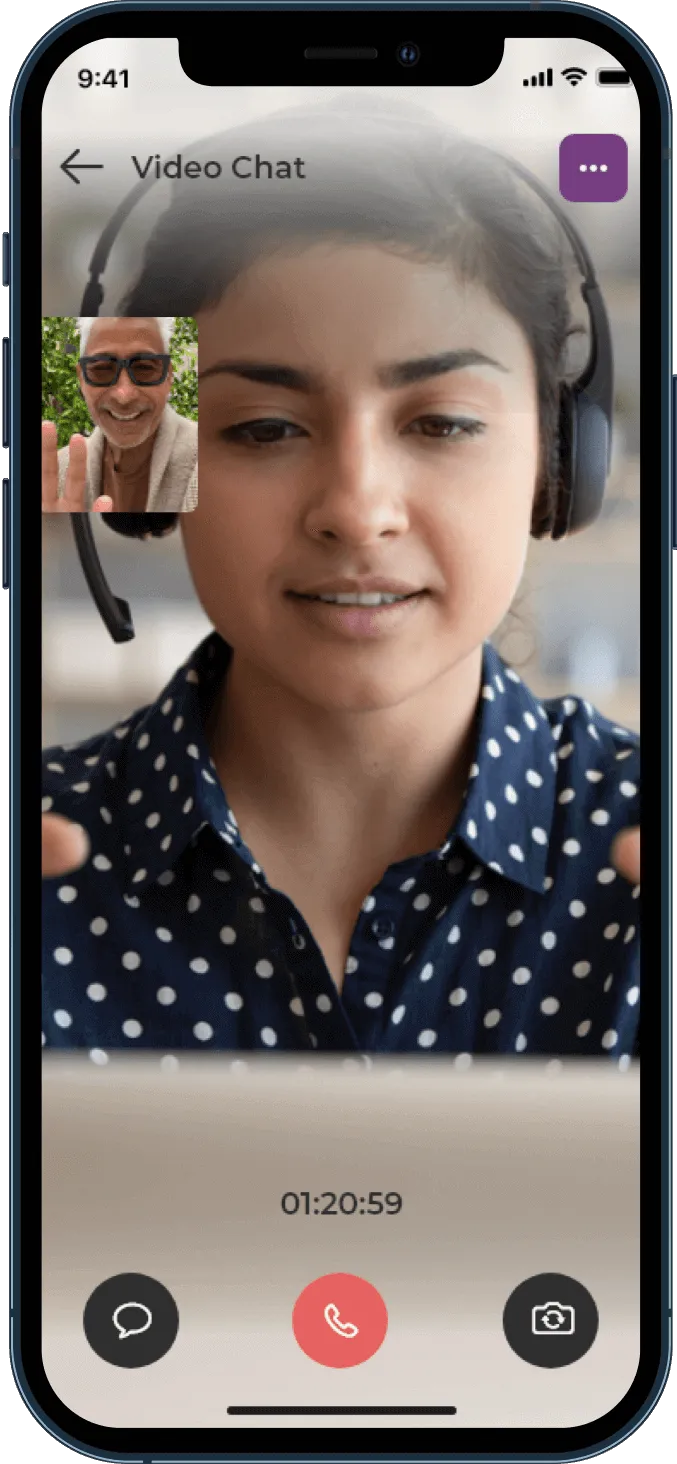
BusyHen includes a collaborative whiteboard inside tutoring sessions. Students and tutors work on the same board in real time - with multiple named boards, renaming, undo, and redo - so they can draw, write, and walk through problems step by step. The whiteboard sits alongside in-app video and messaging.
Teach and learn on the same board - with multiple boards, rename, undo, and redo.

- Shared live board
- With video, files & chat
- One iOS app
Visual learning
Why does online tutoring need a whiteboard?
Most tutoring is not just conversation; it’s working through something together.
In subjects like math, physics, chemistry, statistics, economics, and languages, progress comes from writing out steps, seeing mistakes, and correcting them.
BusyHen’s online whiteboard is designed for that kind of work. Tutors don’t just explain; they can ask the student to write out a solution while they watch, then highlight exactly where the reasoning breaks. Students don’t just listen; they can try problems in front of the tutor and get pointed feedback.
Whiteboard tools
What can you do on the BusyHen whiteboard?
BusyHen’s virtual classroom includes digital whiteboards as part of its advanced teaching tools.
Draw in real time on a shared board
Both the tutor and the student can write, draw, and annotate live, so everyone stays on the same page instead of juggling screenshots.
Write out full solutions step by step
Use the board like a traditional classroom whiteboard for equations, diagrams, grammar examples, and worked problems.
Layer visual explanations over text
Combine diagrams, highlighted regions, and written notes to make tricky topics easier to understand.
Use boards alongside video and files
The whiteboard sits inside BusyHen’s virtual classroom, next to the video call and file sharing, so it becomes part of a complete teaching environment instead of a standalone tool.
These tools help BusyHen present online learning as interactive and dynamic lessons rather than static calls.
Session flow
How does the whiteboard fit into a BusyHen session?
The whiteboard is one step in a larger learning flow - essential to BusyHen’s style of tutoring rather than a bonus feature.
Step 1
Join over video
Students and tutors connect in BusyHen’s virtual classroom.
Step 2
Open the whiteboard
The tutor opens a board when it’s time to work through examples, practice problems, or diagrams.
Step 3
Let the student write first
Students try a problem or outline an idea; tutors watch and see exactly where understanding breaks.
Step 4
Correct and explain on the board
Tutors highlight errors, rewrite steps, and show alternate paths directly on the shared space.
Step 5
Summarize the lesson visually
The final board gives students a snapshot of what they worked on during the session, complementing BusyHen’s broader learning summaries.
In practice
Examples of how students use the BusyHen whiteboard
Real learning situations the whiteboard supports - everyday use rather than abstract claims.
Solving a calculus problem
A student writes each step of a derivative on the board. The tutor waits until the student reaches a blocking point, then marks the exact line that needs to change and rewrites the step in another color.
Practicing grammar
During a language session, the tutor writes a sentence with highlighted parts, then asks the student to correct it on the board, explaining why each change matters.
Visualizing a physics concept
The tutor draws free-body diagrams or trajectories, then lets the student add forces and labels to check understanding.
Planning an essay
Student and tutor build an outline on the board, moving boxes around to structure arguments more clearly.
For tutors
Using the whiteboard to teach better
BusyHen’s virtual teaching tools help tutors turn the board into one of their main teaching instruments.
-
Diagnose understanding in real time
Instead of guessing from answers alone, watch how a student writes and draw conclusions about their habits.
-
Run more interactive sessions
Alternate between talking, writing, and asking students to fill in missing steps on the board.
-
Reuse whiteboard structures
Tutors can reuse board layouts (e.g. templates for problem steps or essay outlines) across multiple sessions, saving time and keeping teaching consistent.
-
Combine with other tools
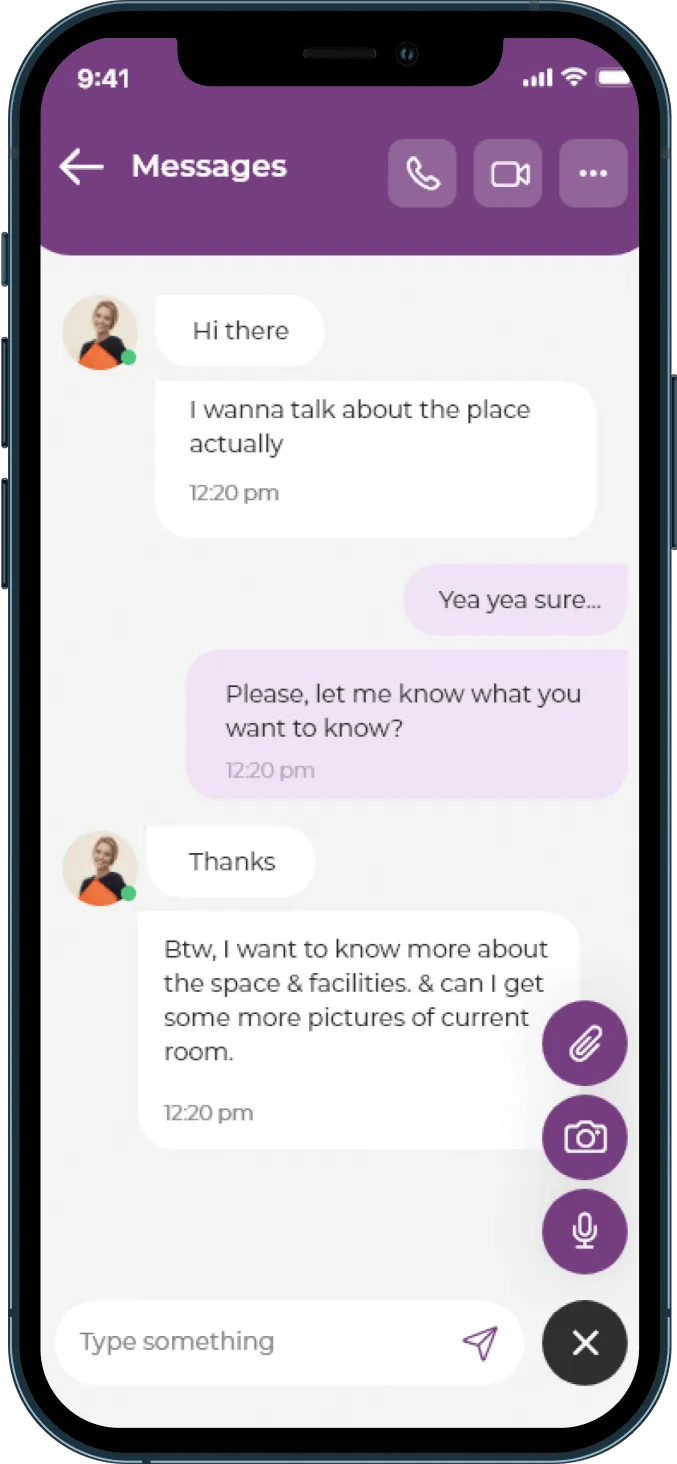
Use the board alongside BusyHen’s video, file sharing, and messaging to create a richer teaching experience.

Online Whiteboard
Online Whiteboard FAQ
Download
Teach and learn visually on BusyHen’s shared whiteboard
Download BusyHen to join live tutoring sessions where you can write, draw, and solve problems together on a shared digital whiteboard - alongside video and messaging.