



Help Center
How can we help?
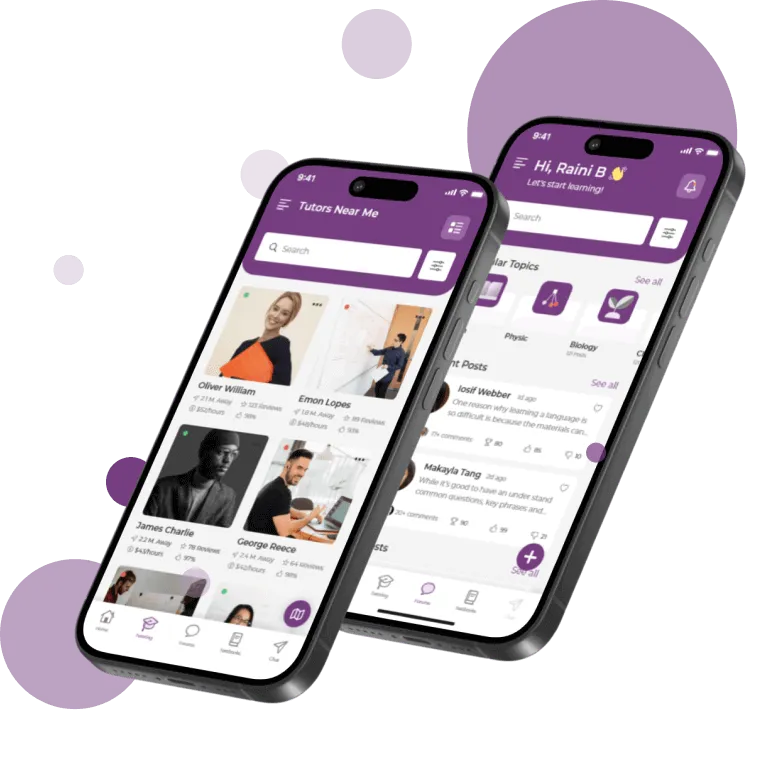
The BusyHen Help Center gives students and tutors quick answers about creating an account, finding or teaching with a tutor, booking sessions, joining the virtual classroom, using chat and whiteboards, and understanding payments. Search for your question or choose a topic below to follow a step-by-step guide.
Task-based answers for account, booking, sessions, and payments.
Browse by task
Find help by task
Task-based categories - not long marketing copy. Pick a topic to jump to the matching guide.
-
Account & profile
Help with signing up, signing in, switching roles, editing profile information, and managing account settings.
View guides → -
Booking & sessions
Help with finding tutors, booking one-on-one sessions, joining group sessions, reviewing session status, and preparing for an upcoming lesson.
View guides → -
Video classroom & learning tools
Help with joining a live session, using video, accessing the shared whiteboard, sharing files, and using in-session messaging.
View guides → -
Chat & communication
Help with finding an active session in the Chat tab, starting a conversation, reading messages, and resolving basic communication issues.
View guides → -
Payments & earnings
Help with card authentication, post-session charges, payment methods, session payments, and understanding tutor earnings.
View guides → -
For tutors
Help with creating a tutor profile, getting discovered, accepting bookings, running sessions, and reviewing earnings.
View guides →
Popular
Popular help topics
The six most common high-intent questions - jump straight to the matching section.
Onboarding
Getting started with BusyHen
-
Download and sign up
Open BusyHen, tap Sign Up, and follow the account creation instructions.
-
Choose your role
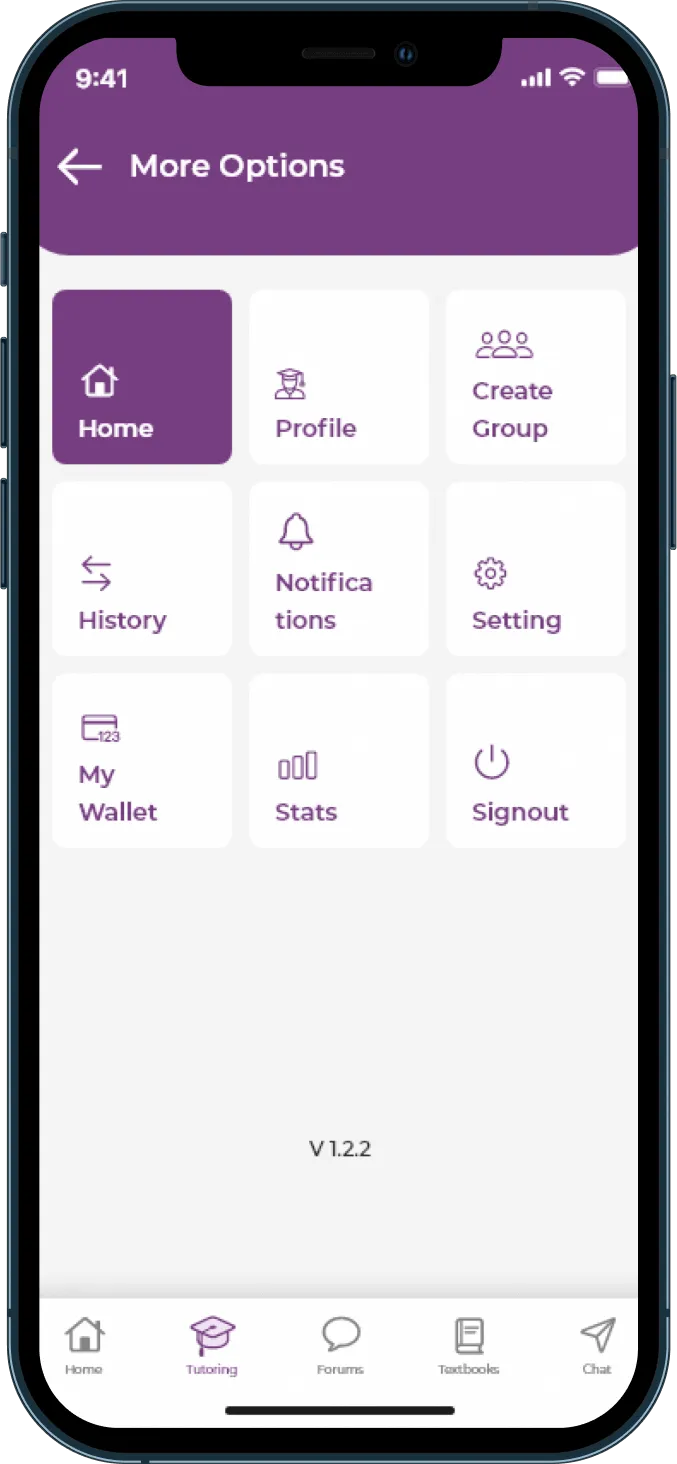
You can use the same BusyHen app as a student or tutor. There is no separate tutor app or separate tutor account; switch roles from the Home tab when needed.
-
Complete your profile
Students should add enough information to make tutor selection easier. Tutors should add their subjects, background, teaching focus, and availability so students can understand who they help best.
-
Start exploring
Students can browse tutors and compare profiles. Tutors can set up their profile and prepare to receive session requests.
Before the session
Booking and managing sessions
Answers for the questions users have before a session begins.
-
How to find a tutor
Students search for tutors, use filters to narrow options by subject, price range, availability, and more, then review profiles before booking.
-
How to book a one-on-one session
Open a tutor profile, choose a one-on-one session, select a suitable time, and send a booking request. The tutor reviews the request before the session is confirmed.
-
How to join a group session
Choose a group that fits your subject and schedule, request a place, and wait for confirmation from the tutor. Group and one-on-one sessions are both supported in BusyHen.
-
How to view session status
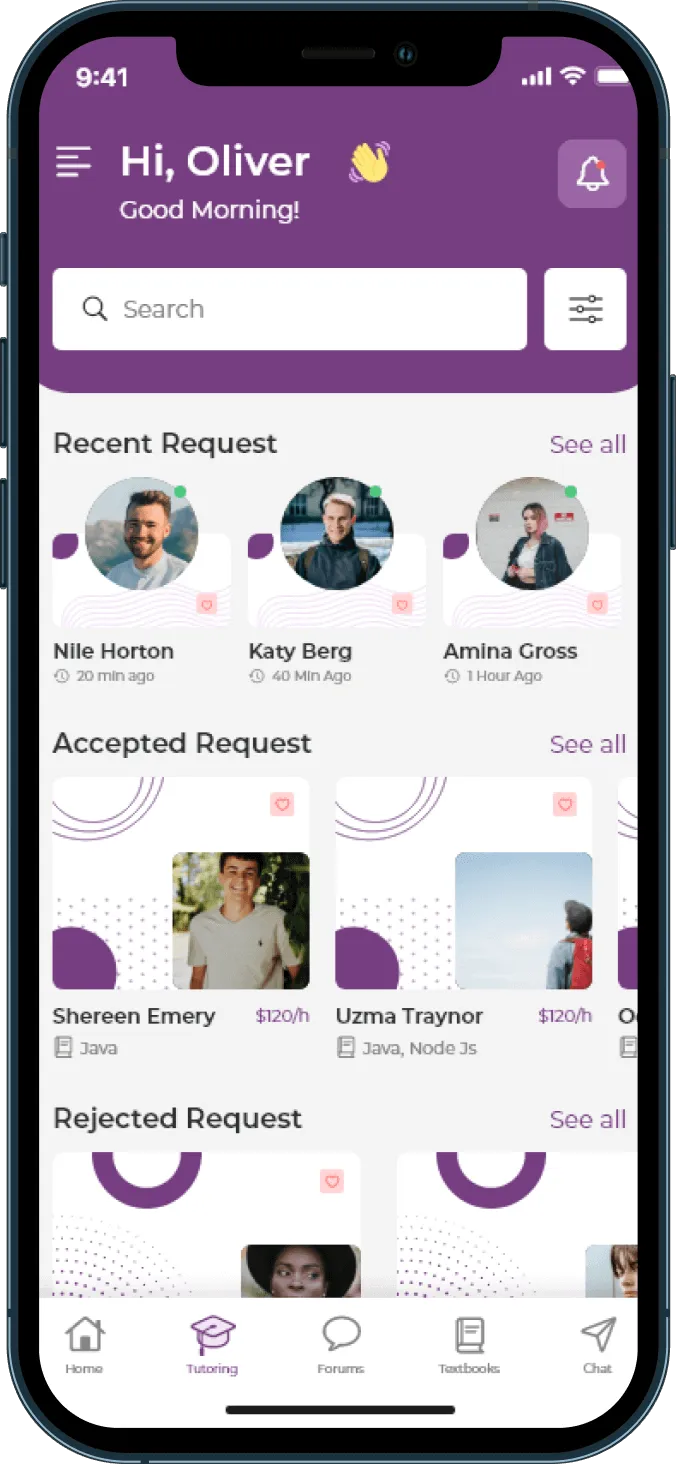
Check your upcoming or active session details inside BusyHen. If the session is active, use the Chat tab to open the session conversation and begin interaction.
Joining the virtual classroom
Get into a session and solve simple setup issues - video, whiteboard, files, and chat.
-
How to join an active session
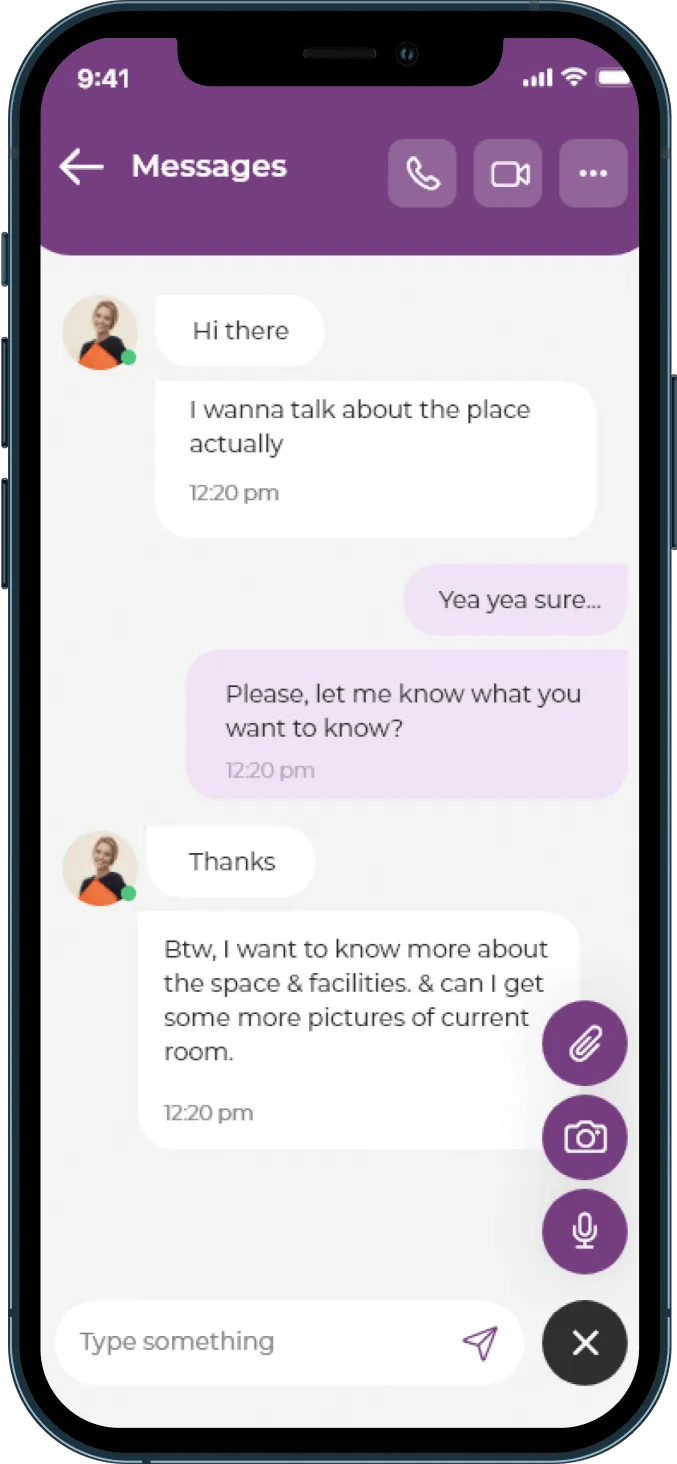
If you have an active session with a tutor or student, go to the Chat tab, select the session from the chat list, and start interaction from there.
-
What tools are available in a session?
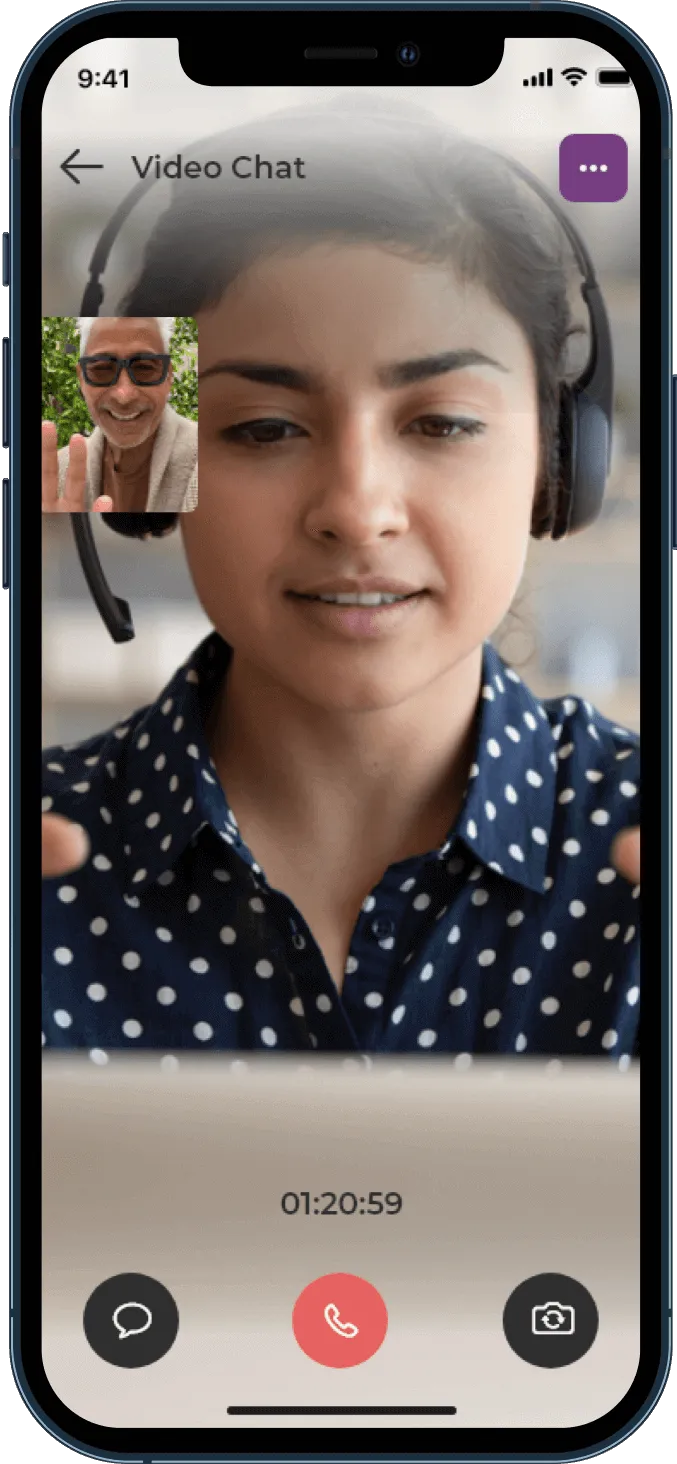
BusyHen’s virtual classroom includes video calls, whiteboards, file sharing, and real-time messaging.
-
Before you join
Use a stable internet connection, allow BusyHen access to your microphone and camera if prompted, keep your device charged, and have class materials ready before the scheduled time.
Billing
Payments and earnings support
Plain-language answers - factual flow only, without unpublished fee or payout policies.
-
How payments work for students
When a student books a tutoring session, BusyHen authenticates their card. Once the session ends, payment is automatically deducted from the authenticated card through the preferred payment method.
-
How earnings work for tutors
Payments are processed automatically after each completed session. Tutors should review their in-app earnings information and completed session history to understand what has been earned.
-
What to check if a payment does not work
Confirm that your payment method is current, check whether the card has expired or been restricted by your bank, and follow any in-app instructions. If the issue continues, contact BusyHen Support with the session date and relevant account details.
For tutors
Help for tutors
A support path for teaching, profile, session, and earnings guidance - separate from student help.
-
Create a profile students understand
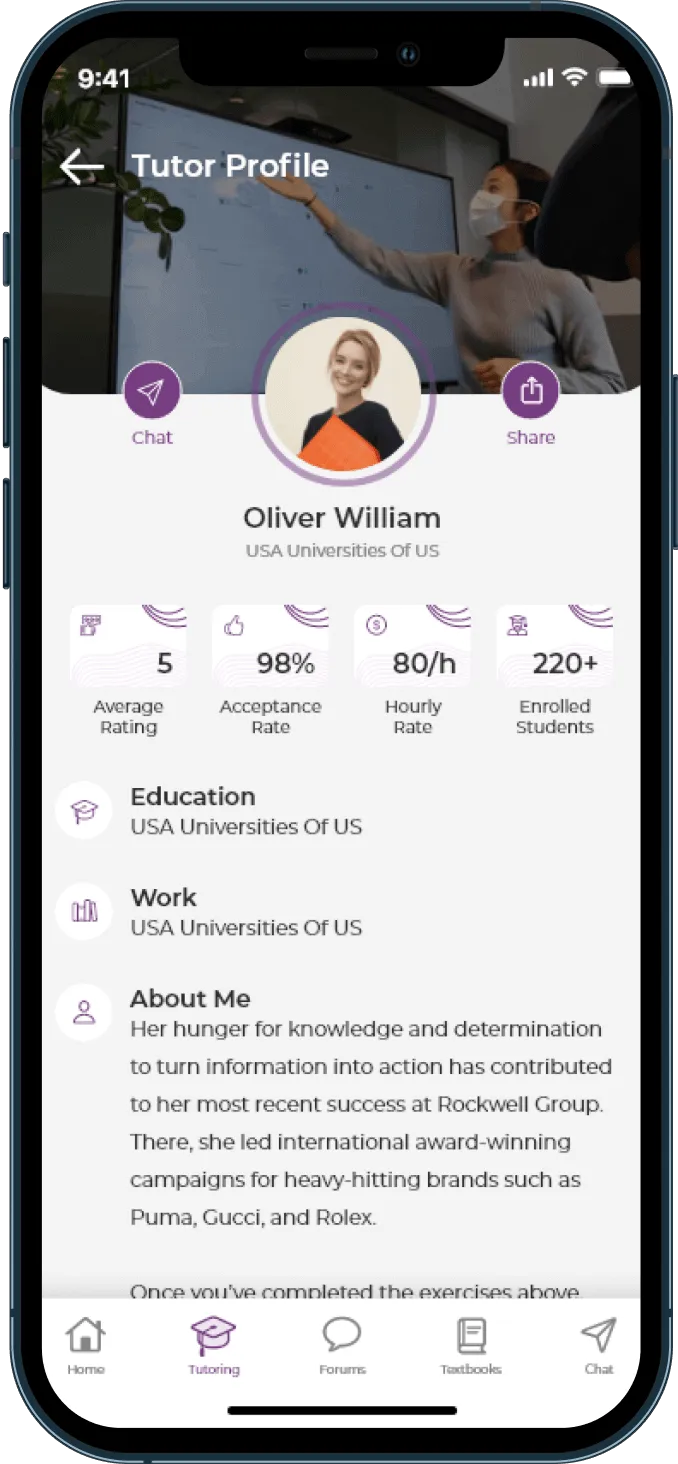
Include the subjects you teach, bio, education, university, campus, and hourly rate. Students use this information when comparing tutors.
-
Manage session requests
Review requests based on your availability and expertise, then accept sessions you can teach. Clear scheduling helps students know what to expect.
-
Prepare for online teaching
BusyHen’s virtual classroom supports video calls, whiteboards, file sharing, and real-time messaging, so tutors should prepare materials and check their camera, microphone, and connection before sessions.
Quick fixes
Troubleshooting shortcuts
Short, direct cards for common problems.
-
I cannot sign in
Check your email or login method, verify your internet connection, then reset your password or contact support if the issue continues.
-
I cannot find my active session
Open the Chat tab and look for the relevant session in the chat list. Confirm the session is accepted and scheduled for the current time.
-
My camera or microphone is not working
Check device permissions for BusyHen, reconnect to the session, and confirm no other app is using the camera or microphone.
-
I cannot complete a payment
Check the payment method linked to your account and any bank alerts. If the issue persists, contact support with the session details.
-
I need help with a tutor or student interaction
Keep relevant session details and messages available, then contact BusyHen Support through the support form with a clear explanation of what happened.
Still need help?
If an article does not answer your question, contact the BusyHen team. When you write, include:
- Whether you are a student or tutor
- The email address associated with your account
- The session date and tutor/student name, if relevant
- A short description of what you expected to happen
- Screenshots or error messages, if available
This gives the support team enough context to investigate faster.
Help Center
Help Center FAQ
Is BusyHen available for both students and tutors?
Where do I start an active session?
What tools are included in the virtual classroom?
When is a student charged?
Where can I get help with finding a tutor?
Support
Still need help?
If an article does not answer your question, contact the BusyHen team with enough context to investigate faster.